We can store insert items in Sharepoint items using many ways like using Sharepoint object model etc. But I need to insert items with Javascript.
I googled lot but didn't get any useful infomation, only Jan tielens' Blog has some infomation which showing list data on page using jQuery.
Finally I created the solution which stores the text box value in the Sharepoint list on button click. Following steps will show step by step information.
- Create the blank web part page in your sharepoint site.
- Browse this web part page
- Edit page by clicking on site action -> Edit page
- In any web part zone, click on 'Add a web part' then add 'Form Web part', Modify this web part.
- Click on source editor button, it will open new window to add your content.
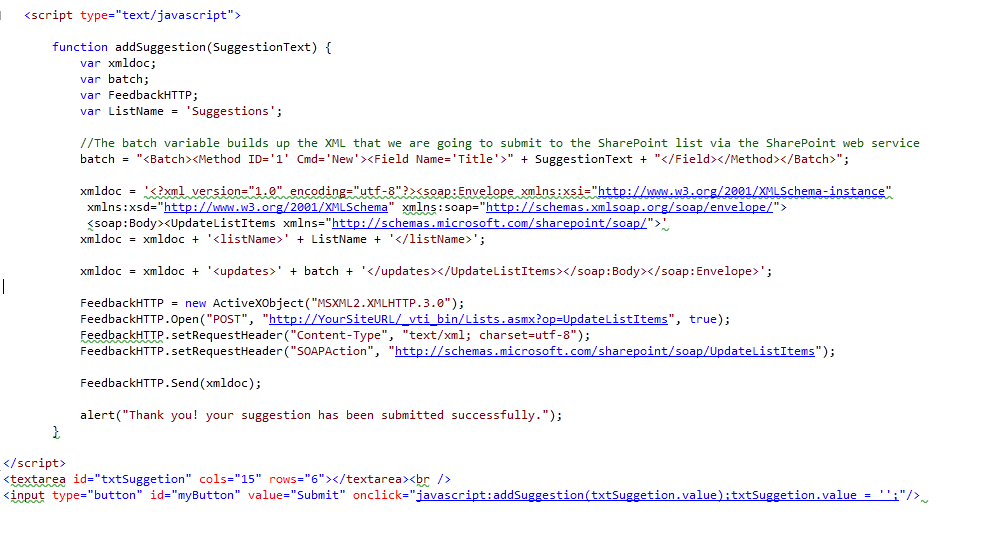
- I added a HTML textarea and button with simple javascript which will store textarea value in given sharepoint list.
- (Before that create new custom list with any name as you wish. I created with name 'Suggestions'
- On source editor, copy and paste following code
<script type="text/javascript">function addSuggestion(SuggestionText) {var xmldoc;var batch;var FeedbackHTTP;var ListName = 'Suggestions';//The batch variable builds up the XML that we are going to submit to the SharePoint list via the SharePoint web servicebatch = "<batch><method id="'1'" cmd="'New'"><field name="'Title'">" + SuggestionText + "</field></method></batch>";xmldoc = '<?xml version="1.0" encoding="utf-8"?><soap:envelope xsi="http://www.w3.org/2001/XMLSchema-instance" xsd="http://www.w3.org/2001/XMLSchema" soap="http://schemas.xmlsoap.org/soap/envelope/"><soap:body><updatelistitems xmlns="http://schemas.microsoft.com/sharepoint/soap/">'xmldoc = xmldoc + '<listname>' + ListName + '</listname>';xmldoc = xmldoc + '<updates>' + batch + '</updates></updatelistitems></soap:Body></soap:Envelope>';FeedbackHTTP = new ActiveXObject("MSXML2.XMLHTTP.3.0");FeedbackHTTP.Open("POST", "http://YourSiteURL/_vti_bin/Lists.asmx?op=UpdateListItems", true);FeedbackHTTP.setRequestHeader("Content-Type", "text/xml; charset=utf-8");FeedbackHTTP.setRequestHeader("SOAPAction", "http://schemas.microsoft.com/sharepoint/soap/UpdateListItems");FeedbackHTTP.Send(xmldoc);alert("Thank you! your suggestion has been submitted successfully.");}</script><textarea cols="15" id="txtSuggetion" rows="6"></textarea><input id="myButton" onclick="javascript:addSuggestion(txtSuggetion.value);txtSuggetion.value = '';" type="button" value="Submit" />
- (Note: Change YourSiteURL with your site name)
- click on save button.
- this will give you text area, insert any comment in text area then click on Submit button.
- Now check your 'Suggestions' list. New item store with textarea value as in title.