SharePointAds TextOnly

Showing posts with label Sharepoint. Show all posts

Thursday, 29 November 2012

SharePoint 2010: Print List Views Button on Ribbon

After getting lots of emails/replies from my last post SharePoint 2010 : Print Calendar list. I've decided to expand new solution with new functionality where you can add "Print Button" on each type of SharePoint lists, even if it is SharePoint Calendar list,Document libraries, tasks lists or any custom lists.
This feature is developed as a Sandbox Solution and successfully tested on SharePoint 2010, O365 SharePoint Online sites.
Print Button on Document Libraries Ribbon:


Print Button on Lists Ribbon:


Print Button on Calendar Ribbon:


Please have a look at my new codeplex solution to download and install feature in your SharePoint 2010 site.
Download Solution from Codeplex

Wednesday, 25 August 2010

How to get approvers user name in workflow?

When you assign workflow task to any group and how would you get task approvers user name? Task list can show only 'assigned to' column which will give you group name only.
You can fetch approvers user name by creating custom List item event receiver for task list. Create Item updated event receiver and add following code...

public override void ItemUpdated(SPItemEventProperties properties)
{
base.ItemUpdated(properties);

SPListItem oListItem = properties.ListItem;
oListItem["ApprovedBy1"] = properties.UserDisplayName;
oListItem.Update();
}

*Note: Create new column for workflow task list. I created new column with 'ApprovedBy1' name.

Monday, 26 July 2010

Sharepoint : How to Edit List Item's Default forms from UI?

How we can edit Sharepoint's List Item forms( NewForm.aspx, DispForm.aspx or EditForm.aspx) from UI? By default there is not any option in Site Setting tab to edit form.
If you want to edit List Item default forms on UI then there is another way...
Just add below line in URL..
&ToolPaneView=2


After adding this statement in URL, you can edit page or add new web parts on default list items page.

Monday, 3 May 2010

Populate all Sharepoint Document Library names which has my custom Content types

Today I populated all document library names which has my custom content type in drop down list control in web part.
(So before start further, I am assuming that you have created any document library with custom content type in visual studio 2010.)
Lets starts with creating simple web part template in VS 2010 and on user control page (in .ascx) add ASP.net dropdown control with name 'ddlCategory'

<asp:DropDownList ID="ddlCategory" runat="server" > </asp:DropDownList>


and on usercontrol.ascx.cs page, add following function code on 'page_load'


public void PopulateDocNames()
{
ArrayList listWithMyCT = new ArrayList();
using (SPSite objSite = new SPSite("http://YOURSITE:PORT/"))
{
using (SPWeb objWeb = objSite.OpenWeb())
{
foreach (SPList list in objWeb.Lists)
{
if (list is SPDocumentLibrary && list.ContentTypes["Custom_Content_Type"]!= null)
{
listWithMyCT.Add(list.Title);
}
}
}
}
ddlCategory.DataSource = listWithMyCT;
ddlCategory.DataBind();
}

Note: Change YOURSITE:PORT and Custom_Content_Type with your site URL with port and your custom content type name.


Thursday, 22 April 2010

How to insert item in Sharepoint list using javascript and Sharepoint web services


We can store insert items in Sharepoint items using many ways like using Sharepoint object model etc. But I need to insert items with Javascript.
I googled lot but didn't get any useful infomation, only Jan tielens' Blog has some infomation which showing list data on page using jQuery.
Finally I created the solution which stores the text box value in the Sharepoint list on button click. Following steps will show step by step information.
  • Create the blank web part page in your sharepoint site.
  • Browse this web part page
  • Edit page by clicking on site action -> Edit page
  • In any web part zone, click on 'Add a web part' then add 'Form Web part', Modify this web part.
  • Click on source editor button, it will open new window to add your content.
  • I added a HTML textarea and button with simple javascript which will store textarea value in given sharepoint list.
  • (Before that create new custom list with any name as you wish. I created with name 'Suggestions'
  • On source editor, copy and paste following code


  • 
    

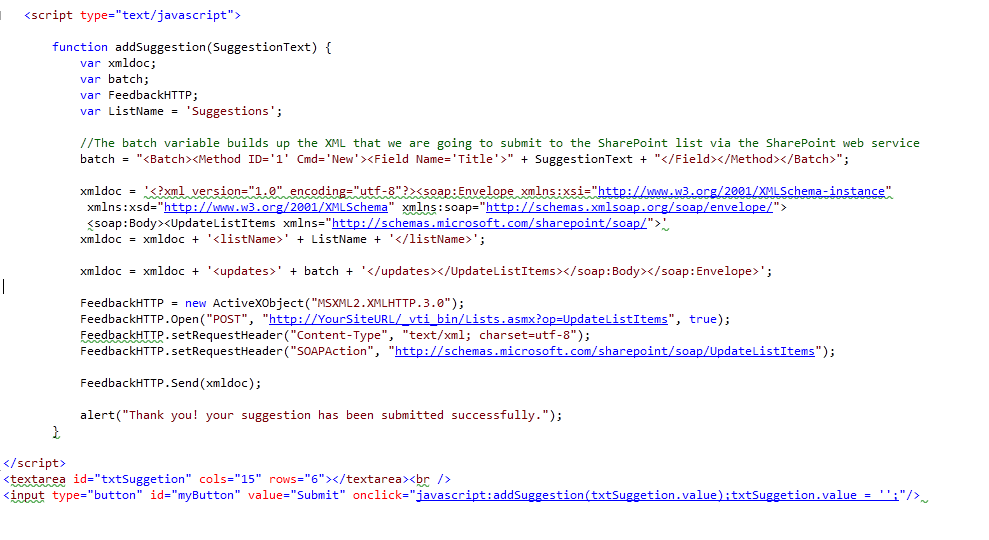
    <script type="text/javascript">
        function addSuggestion(SuggestionText) {
            var xmldoc;
            var batch;
            var FeedbackHTTP;
            var ListName = 'Suggestions';


            //The batch variable builds up the XML that we are going to submit to the SharePoint list via the SharePoint web service
            batch = "<batch><method id="'1'" cmd="'New'"><field name="'Title'">" + SuggestionText + "</field></method></batch>";


            xmldoc = '<?xml version="1.0" encoding="utf-8"?><soap:envelope xsi="http://www.w3.org/2001/XMLSchema-instance" xsd="http://www.w3.org/2001/XMLSchema" soap="http://schemas.xmlsoap.org/soap/envelope/"><soap:body><updatelistitems xmlns="http://schemas.microsoft.com/sharepoint/soap/">'
            xmldoc = xmldoc + '<listname>' + ListName + '</listname>';


            xmldoc = xmldoc + '<updates>' + batch + '</updates></updatelistitems></soap:Body></soap:Envelope>';


            FeedbackHTTP = new ActiveXObject("MSXML2.XMLHTTP.3.0");
            FeedbackHTTP.Open("POST", "http://YourSiteURL/_vti_bin/Lists.asmx?op=UpdateListItems", true);
            FeedbackHTTP.setRequestHeader("Content-Type", "text/xml; charset=utf-8");
            FeedbackHTTP.setRequestHeader("SOAPAction", "http://schemas.microsoft.com/sharepoint/soap/UpdateListItems");


            FeedbackHTTP.Send(xmldoc);


            alert("Thank you! your suggestion has been submitted successfully.");
        }
    </script>
    <textarea cols="15" id="txtSuggetion" rows="6"></textarea>

    <input id="myButton" onclick="javascript:addSuggestion(txtSuggetion.value);txtSuggetion.value = '';" type="button" value="Submit" />


  • (Note: Change YourSiteURL with your site name)
  • click on save button.
  • this will give you text area, insert any comment in text area then click on Submit button.
  • Now check your 'Suggestions' list. New item store with textarea value as in title.

Saturday, 27 February 2010

Sharepoint Search Control: How to add “All Sites” option in Sharepoint search control?

Today I worked on small task; I need to implement “All Sites” option in search control drop downbox. By default it’s not available in search control dropdown.

Follow simple steps to add “All Sites” option in Sharepoint Search control:

1. Goto root site and click on Site Setting

2. Click on ‘Search Settings’ from Site Collection Administration section

3. Second radio button option is selected for first time with name as ‘Do not use custom scopes. Display results in the search results page (/_layouts/osssearchresults.aspx).’ This option is for “This Site:” option

4. First radio button option is “Use custom scopes. Display richer results using the following Search Center:” This option is for custom drop down items like "All sites" and “people” options.

5. So to display “All Sites” option, we need to have “Search Center” team site. This Search Center team site is automatically created within enterprise sharepoint edition; but if you don’t have enterprise version then you need to create Search Center site

6. So create new team site by going to root site, select Site Actions -> Create Site , give search site name, URL name like e.g. Search, and select template as Click on Enterprise tab and click on ‘Search Center With Tabs’ option. Next click on Create button. It will create new Search Center site.

7. Once you create this site, copy URL of search site and paste into first radio option text box (as explained in step 4) in search setting option. (e.g. /Search/Pages), click on OK button

8. After that it will give new extra options “All sites” and “People” in search dropdown control.

Search anything with “All sites” option, it will return result in http://[your_site_name]/_layouts/osssearchresults.aspx page.


.

Thursday, 5 November 2009

Sharepoint: How to create new custom permission level?

We can create custom permission levels and assign to site users.

How to create new custom permission level?
1. Goto Site Setting

2. Select Advance Permission
3. Goto Setting and click on Permission level
4. It will open new page, then click on Add a Permission level
5. Give Name, description for this new permission level select permissions from list as per your need.
6. Click on Create, It will display on permission level page.

How to assign this new permission to users?
1. Goto Site Setting
2. Select People and groups
3. Click on New Menu and select Add user
4. enter user name on people picker box, and select "
" radio button
5. Find
newly created permission level click on check box to assign user under this permission
6. Click on OK


Monday, 21 September 2009

Sharepoint:Add new link to Quick Launch, Programmatically and through site settings

We can add new link to Quick launch menu by two ways
i. By Site Setting
ii. By Programmatically


1. How to add new link by Site settings?
Follow the following steps:
a. Login by admin authentication
b. Goto Site Action -> Site Settings
c. Click on 'Quick Launch' under 'Look and Feel' section
d. Click on 'Select Heading' and add 'Web Address' where you want to redirect (I use '#' which redirects to default.aspx page)and then give new name for this new section in 'description' text box(I use 'Custom Menu').
e. Click on OK, this will create new section in Quick Launch menu
f. Then click on 'New Link', it will open new window
g. Provide web address, and description (I use '/MyCustomPage.aspx' and give name as 'My Custom Page', this name will displaying in Quick launch menu)
i. Then select heading from combo box, select 'Custom Menu' heading
j. click on OK button
k. Now click on Home or goto default.aspx page


2. How can we create Quick Launch menu Programmatically?
use following code:

SPWeb web = SPContext.Current.Site.RootWeb;
web.AllowUnsafeUpdates = true;

SPNavigationNodeCollection nodes = web.Navigation.QuickLaunch;
SPNavigationNode navNode = new SPNavigationNode("Custom Menu", "#", false);
nodes.AddAsFirst(navNode);

SPNavigationNode headerLink1 = new SPNavigationNode("My Custom Page", "/MyCustomPage.aspx", true);
nodes[0].Children.AddAsFirst(headerLink1);


This will create new section in Quick lauch menu..
Really soooo easy :)

Friday, 4 September 2009

Sharepoint: Error while sending email alerts thro' sharepoint site

sometimes sharepoint email alerts are not properly working, and its very difficult to find actual error cause.
I also faced lots of problem with same issue, on development server alerts works like charm but on installable server, email alerts not working..
I searched for solution but didn't get anything, all outgoing email configuration in Central Admin correct.

So i checked email error from following utility, you can download from
http://www.codeplex.com/rodneyviana/Release/ProjectReleases.aspx?ReleaseId=19103

you can extract only the .exe file (SendMail\bin\Debug\SendMail.exe) and run it without any installation. This application will send an e-mail. Enter the url of a valid sharepoint site and a valid user login name for that site which will be the recipient of the test email message. The application will display the e-mail information from the sharepoint site user login name.

for more information please have a look at
http://blogs.msdn.com/rodneyviana/archive/2008/11/06/how-to-test-the-mail-settings-for-a-sharepoint-web-application.aspx

Thursday, 27 August 2009

Sharepoint: How to get MAX id of list?

How can we get MAX id of any present list?
-> Simplely use following code
(*Note: insert your list name rather 'List_Name')

public string MaxListId()
{
SPWeb web = SPContext.Current.Web;
SPList oList = web.Lists["List_Name"];
SPQuery query = new SPQuery();

query.Query = "";
SPListItemCollection items = oList.GetItems(query);

DataTable dtmax = new DataTable();
dtmax = items.GetDataTable();

string maxId = "";
foreach (DataRow row in dtmax.Rows)
{
maxId = row["ID"].ToString();
break;
}

return maxId;
}


--